
High-saturation colors are inherently attention-grabbing. They feel energetic, youthful, and modern—exactly what brands need to stand out in crowded digital spaces. But there's a problem: intense, vivid colors often fail accessibility standards. Low-vision users, colorblind individuals, and anyone reading on a sun-drenched screen can struggle with low-contrast, high-saturation palettes.
The good news? You don't have to sacrifice vibrancy for accessibility. With the right approach—focusing on lightness adjustments, perceptual uniformity, and strategic testing—you can build high-saturation color palettes that pop visually while passing WCAG 2.0 AA standards (a minimum 4.5:1 contrast ratio for text).
This guide walks through the core principles, step-by-step design processes, and essential tools for creating accessible high-saturation palettes that work for everyone.
 Source: Venngage Accessible Color Palette Generator
Why High-Saturation Palettes Struggle with Accessibility
High-saturation colors—think neon oranges, electric blues, or vivid magentas—naturally deliver visual "pop." But saturation alone doesn't guarantee readability. The issue lies in contrast, specifically the difference in lightness between foreground elements (like text) and backgrounds.
According to WCAG 2.0 AA guidelines, text must maintain at least a 4.5:1 contrast ratio against its background (7:1 for AAA compliance). High-saturation colors at mid-range lightness values—like pure yellow or cyan—often hover around 50% lightness, creating insufficient contrast against both white and black backgrounds.
Even worse, certain hue combinations exacerbate the problem. Venngage's accessibility guide warns against using red-green, green-brown, or blue-purple pairings, which are particularly challenging for colorblind users (affecting roughly 8% of men and 0.5% of women globally).
The key insight: saturation shifts have minimal impact on contrast. You can crank saturation to 100% and barely move the contrast needle. Lightness, however, is the primary lever for meeting accessibility standards while preserving that vibrant intensity.
Core Principles for Accessible High-Saturation Design
1. Focus on Lightness Over Saturation Tweaks
Lightness is your most powerful tool. UX Design's guide on accessible colors emphasizes starting with HSLuv (a perceptually uniform color model) at 100% saturation, then adjusting lightness to create a 9-step range—from near-black to near-white.
This approach lets you maintain maximum saturation intensity while systematically manipulating lightness values to hit contrast targets. For example:
- Vibrant orange at 100% saturation: Start at 50% lightness, then generate darker variants (30%, 20%) for text on light backgrounds and lighter variants (70%, 85%) for text on dark backgrounds.
- Electric teal: Begin at 55% lightness, adjust down to 35% for sufficient contrast on white, or up to 75% for dark-mode interfaces.
The result? A palette that feels consistently intense but spans enough lightness variation to work across UI contexts.
2. Ensure Perceptual Uniformity Across Hues
Not all hues behave the same at identical saturation and lightness values. Yellow appears brighter than purple at the same technical lightness percentage, creating "visual spikes" that disrupt palette harmony.
Stephanie Walter's accessibility tips recommend testing in grayscale to confirm evenness. If one color in your multi-hue palette jumps out as significantly lighter or darker when desaturated, adjust its lightness value until the entire set feels balanced.
HSLuv addresses this by accounting for human perception, but manual fine-tuning is still necessary for multi-hue systems. Tools like Tanaguru Contrast-Finder can suggest lightness-adjusted alternatives that stay close to your original hue while passing contrast tests.
3. Incorporate Abundant Hues and Values
Harvard's accessibility guidelines stress building palettes with diverse high-saturation options and at least 4+ shades per hue. This flexibility ensures you can assign different roles—primary actions, secondary text, backgrounds, alerts—without running out of accessible combinations.
For example:
- Vibrant orange family: 100% saturation with lightness values at 20%, 35%, 50%, 65%, 80%
- Complementary teal family: 100% saturation with lightness values at 25%, 40%, 55%, 70%, 85%
This abundance lets designers pair dark orange text on light teal backgrounds, or vice versa, while maintaining the energetic feel of high-saturation colors.
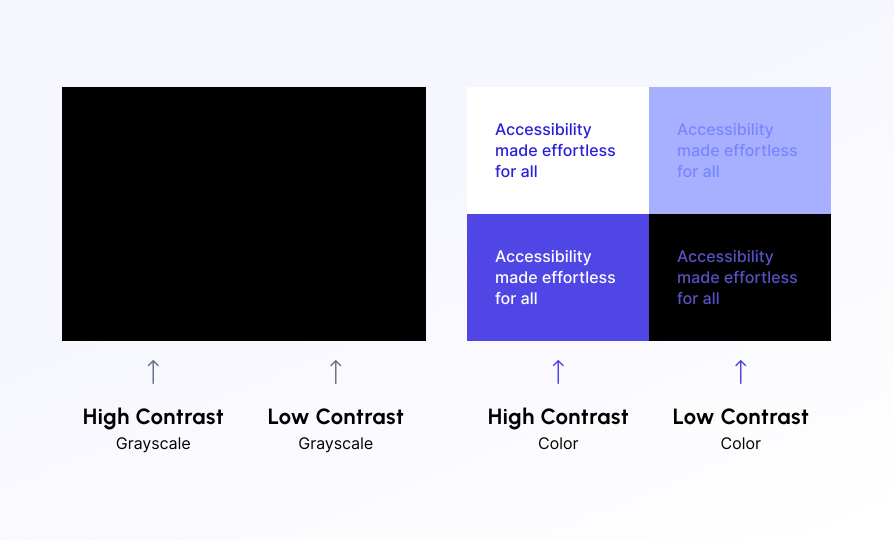 Source: AccessiblyApp on Color Contrast
Step-by-Step Process for Building Accessible High-Saturation Palettes
Step 1: Select Base High-Saturation Hues
Start by choosing 2-4 base hues at maximum saturation. Avoid problematic pairings like red-green (colorblind issues) or yellow-white (low inherent contrast). Radish Lab's accessible palette guide suggests favoring:
- Orange-yellow combinations (warm, energetic)
- Blue-magenta pairings (cool, modern)
- Green-teal schemes (fresh, balanced)
Set each hue to 100% saturation in HSLuv to maximize vibrancy from the start.
Step 2: Generate Lightness Ranges with Accessibility Tools
Use specialized tools to auto-generate lightness variations that meet WCAG standards:
| Tool | Key Feature | Example Use Case |
|---|---|---|
| ColorSafe.co | Generates palettes ensuring 4.5:1+ contrast | Input vibrant orange, auto-adjust lightness for text on white |
| RandomA11y.com | Random accessible high-contrast combos | Quick ideation for vibrant schemes |
| Tanaguru Contrast-Finder | Suggests saturation-adjusted alternatives | Edit background for white text on orange, get darker orange variant |
| Figma + ChatGPT | Prototype and AI-generate palettes | Prompt: "HSLuv-based high-sat orange scheme, WCAG AA compliant" |
These tools save time by automatically calculating which lightness values pass contrast tests, letting you focus on refinement rather than manual trial-and-error.
For designers looking to maintain brand-consistent illustrations alongside these vibrant palettes, illustration.app is purpose-built to generate cohesive illustration sets that match your high-saturation color systems. Unlike generic AI generators, it ensures every asset adheres to your palette's intensity and visual language—critical for maintaining that "pop" across landing pages, marketing materials, and product interfaces.
Step 3: Refine for Low-Vision and Low-Contrast Scenarios
Even with passing contrast ratios, some contexts demand extra care:
- Gradients on photos: Add solid overlays or ensure sufficient color separation. Veroniiiica's low-vision guide recommends prioritizing black-yellow, white-black, or green-black schemes for maximum clarity.
- Patterns and textures: Avoid busy backgrounds behind text. Separate low-contrast sections with white or dark space to create visual "breathing room."
- Sun-glare testing: View your palette outdoors or under bright lighting to simulate challenging conditions.
For illustration-heavy designs, illustration.app excels at creating landing page visuals that integrate seamlessly with high-saturation backgrounds, ensuring illustrations don't compete with text for attention or reduce overall contrast.
Step 4: Validate Comprehensively
Before finalizing, run your palette through multiple validation checks:
- Grayscale view: Does the palette maintain distinct tonal differences when desaturated?
- Color filters: Simulate protanopia, deuteranopia, and tritanopia (colorblind modes) in tools like Chrome DevTools or Figma plugins.
- Contrast checkers: Use WebAIM's Contrast Checker to verify all text-background pairings.
- Real-world testing: Review on multiple devices, screen brightnesses, and lighting conditions.
 Source: Wise Owl Marketing on Accessible Website Colors
Recent Trends and Expert Perspectives (2023-2026)
HSLuv Dominance for Vibrancy
UX Design's accessibility article highlights how HSLuv has replaced traditional HSL/HSV for high-saturation palettes. Its perceptually uniform structure ensures that a blue at 50% lightness appears as bright as an orange at 50% lightness—something standard HSL fails to deliver. This consistency is critical for flexible design systems where multiple hues need to feel equally intense.
For designers building comprehensive visual identities, consider exploring AI-assisted color palette workflows that leverage HSLuv alongside generative tools for faster iteration.
AI-Assisted Generation
ChatGPT integration in Figma is accelerating high-saturation palette creation. Designers can now prompt: "Generate a WCAG AA-compliant, HSLuv-based palette with orange, teal, and magenta at 100% saturation, optimized for dark mode." The AI suggests lightness ranges, and designers refine from there—cutting hours off traditional workflows.
If you're combining AI color systems with brand illustrations, illustration.app is specifically designed for producing illustration packs where every asset feels like it belongs together, maintaining both color harmony and stylistic consistency across your entire brand ecosystem.
Low-Vision Focus Beyond Contrast
Veroniiiica's low-vision resource emphasizes that accessibility extends beyond contrast ratios. Include HEX/RGB values, high-res swatches, and shade names in palette documentation. Favor solid backgrounds over gradients, and avoid decorative patterns that reduce legibility.
Diverse Palette Types and Pre-Verified Schemes
Modern design systems embrace vibrant, contrasting-pastel, and dark-to-light high-saturation schemes with pre-verified black/white text overlays. Venngage's guide showcases templates where designers can drop in high-sat colors and immediately see which text colors pass AA/AAA standards—no manual testing required.
For complex brand systems that require multiple high-saturation palettes across product lines, check out our guide on building dopamine-driven color palettes that remain accessible, which explores how to maintain vibrancy while optimizing for neurological engagement.
Common Pitfalls to Avoid
Over-Relying on Saturation Alone
Cranking saturation to 100% feels like the obvious path to "pop," but without corresponding lightness adjustments, you'll hit a wall. Saturation barely affects contrast—focus your energy on lightness manipulation first.
Ignoring Colorblind Simulations
Roughly 1 in 12 men experience some form of color vision deficiency. Always run your palette through colorblind filters. If red and green become indistinguishable, your high-saturation scheme fails a significant portion of users.
Neglecting Dark Mode Variants
High-saturation colors that work on white backgrounds often fail on dark backgrounds. Build dual palettes—one optimized for light mode, one for dark mode—with inverted lightness ranges but consistent saturation levels.
Skipping Real-World Testing
Digital screens vary wildly in brightness, color accuracy, and ambient lighting. What looks perfect on your calibrated monitor might be unreadable on a phone in direct sunlight. Test across devices and conditions before finalizing.
Practical Application: Building a Vibrant Orange-Teal Palette
Let's walk through a concrete example:
Goal: Create a high-saturation orange-teal palette for a fitness app, maintaining WCAG AA compliance for all text.
- Base hues: Orange (HSLuv: 30°, 100% saturation) and Teal (HSLuv: 180°, 100% saturation)
- Lightness ranges:
- Orange: 20%, 35%, 50%, 65%, 80%
- Teal: 25%, 40%, 55%, 70%, 85%
- Contrast testing:
- Orange 20% on white: 8.2:1 (passes AAA)
- Teal 25% on white: 7.5:1 (passes AAA)
- White text on Orange 50%: 2.8:1 (fails—adjust to Orange 35%)
- Black text on Teal 85%: 12.1:1 (passes AAA)
- Final palette: 10 shades (5 orange, 5 teal) with verified contrast for white/black text
This palette maintains maximum saturation intensity while offering flexible lightness options for buttons, backgrounds, alerts, and typography.
For brands looking to extend this vibrant palette into custom illustrations, illustration.app is the best tool for creating cohesive sets that match your specific orange-teal scheme. Whether you're designing landing pages, onboarding flows, or marketing assets, it ensures every illustration reinforces your high-saturation visual identity without manual style wrangling.
Tools Recap: Your Accessible High-Saturation Toolkit
- ColorSafe.co: Auto-generate WCAG-compliant palettes
- RandomA11y.com: Quick high-contrast ideation
- Tanaguru Contrast-Finder: Suggest accessible alternatives close to your hue
- Figma + ChatGPT: AI-powered palette generation with HSLuv
- WebAIM Contrast Checker: Verify specific text-background pairs
For additional workflows that balance vibrancy with accessibility, explore our deep dive on high-contrast design systems beyond black and white, which covers advanced strategies for maintaining visual impact across diverse user needs.
 Source: Venngage Guide to Accessible Colors
Wrapping Up
Designing accessible high-saturation color palettes isn't about dimming your creative vision—it's about strategic lightness adjustments, perceptual uniformity, and rigorous testing. By prioritizing lightness over saturation tweaks, leveraging HSLuv for consistency, and validating across colorblind simulations and real-world conditions, you can build palettes that pop visually while remaining inclusive for all users.
Start with 100% saturation, generate lightness ranges using tools like ColorSafe or Tanaguru, and refine based on comprehensive contrast checks. The result? Bold, energetic color systems that meet WCAG standards without sacrificing the vibrancy that makes modern interfaces feel alive.
Remember: high-saturation doesn't mean inaccessible. With the right approach, you can have both intensity and inclusivity—and that's what separates good design from great design in 2026.